---
title: How to Schedule Content
description: Learn how to schedule content on your Vrtly screens so the right promotions and messages play at the right time in your practice.
---
[Skip to content](https://support.vrtly.ai/kb/schedule-content#main-content)
[](https://support.vrtly.ai?hsLang=en)
- [Plans](https://www.vrtly.ai/pricing)
Open main navigation
Close main navigation
- [Plans](https://www.vrtly.ai/pricing)
- [Contact us](https://support.vrtly.ai/kb/contact-support)
[Contact us](https://support.vrtly.ai/kb/contact-support?hsLang=en)
How can we help?
- There are no suggestions because the search field is empty.
1. [Support](https://support.vrtly.ai/kb?hsLang=en)
2. [Content Management](https://support.vrtly.ai/kb/content-management?hsLang=en)
# How to Schedule Content
## Set a schedule to automatically control when content starts and stops playing on your screens.
Available on PRO and PLUS plans only
### Setting a Schedule
1. Sign in to your account via [**my.vrtly.ai**](https://my.vrtly.ai)
2. Navigate to **Content** \> **Custom Content**
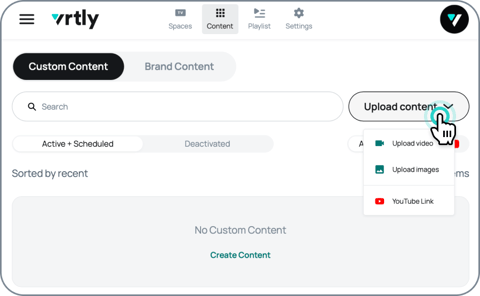
3. Upload or import your content
4. Select **Set a Schedule**
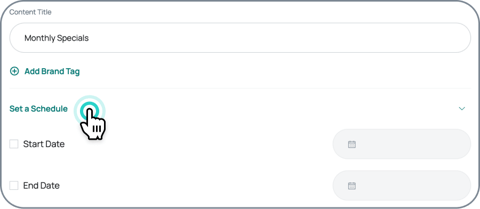
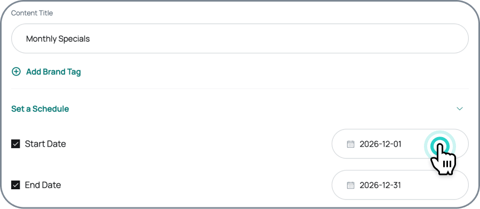
5. Add a **Start** and/or **End** date and save
*Start dates begin at 12:00 AM on the selected day.*
*End dates stop at 11:59 PM on the selected day.*
---
### Schedule Statuses
**Active**
This content is currently showing on your screens.
*You will see the expiration date if you set an end date.*

**Scheduled**
This content is scheduled for a future date. It will appear in the Active + Scheduled tab, but will not play until its start date.

**Expired**
This content has ended and is no longer showing on your screens. It moves to the Deactivated tab, where it stays saved. To use it again, update the schedule dates.

- [Get Started](https://support.vrtly.ai/kb/get-started?hsLang=en#main-content)
- [Screen Setup](https://support.vrtly.ai/kb/get-started?hsLang=en#screen-setup)
- [Best Practices](https://support.vrtly.ai/kb/best-practices?hsLang=en)
- [Content Management](https://support.vrtly.ai/kb/content-management?hsLang=en)
- [Strategies](https://support.vrtly.ai/kb/strategies?hsLang=en)
- [Account & Billing](https://support.vrtly.ai/kb/account-billing?hsLang=en)
- [Troubleshooting](https://support.vrtly.ai/kb/troubleshooting?hsLang=en#main-content)
- [Preventing Screens from Turning Off](https://support.vrtly.ai/kb/troubleshooting?hsLang=en#preventing-screens-from-turning-off)
- [Legacy Hardware](https://support.vrtly.ai/kb/troubleshooting?hsLang=en#legacy-hardware)
- [Plans](https://www.vrtly.ai/pricing)
[](https://vrtly.ai/support)
15 Railroad Avenue
Danville, CA 94526
[mailto:support@vrtly.ai](mailto:support@vrtly.ai)
Copyright © Vrtly, Inc.