
Content temporarily paused
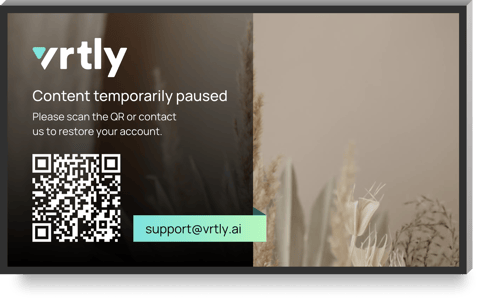
This message may appear for one or more of the following reasons:
- Brand Requirement
Your plan requires a minimum number of selected brands. Add more brands to meet your plan requirements and enable playback. - Free Plan Screen Limit Reached
The Free plan includes 1 Brand Only screen. If you have additional screens, they will remain locked until you upgrade to a paid plan. Learn more about your plan options and upgrade to unlock additional screens.
View plan options - Paid Plan Screen Limit Reached
You've reached the screen limit included with your subscription. If all of your screens are at a single location, contact us to increase your limit at no additional cost. - Multiple Locations
For multi-location practices, create a separate account for each location or contact us to discuss an Enterprise plan with centralized management.
No content selected
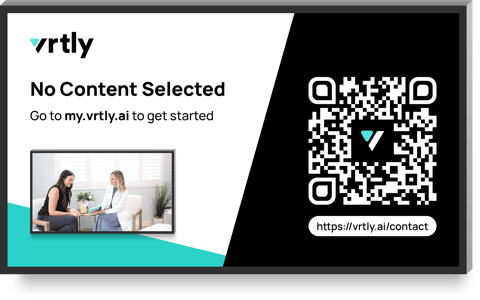
No content has been assigned to this screen.
Add content by visiting your practice portal and signing in > navigate to the Content section > select more brands if you're on a free plan or upload your own content.
No playlists selected
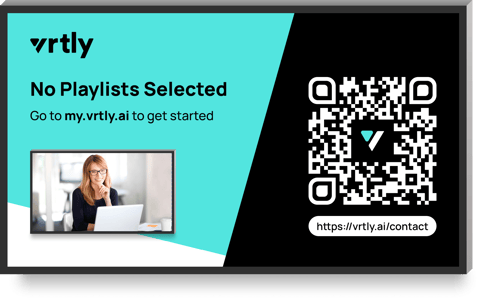
This screen does not have any active playlists assigned.
How to assign a playlist
-
Go to the playlist section
- Create a new playlist and assign it to this screen
- Or assign an existing playlist to this screen
Alternative solution - switch to Shuffle ads mode:
- On your Vrtly screen:
- Display playback controls by tapping the center of the screen or press OK, Up, or Down on your remote.
- Select the option "Shuffle Ads"
- Via your portal:
- Sign in to your account
- Go to Spaces
- Select your screen
- Select the option to Switch to AutoBlend mode
Still having issues?
Contact our support team and include your device type (Roku, Fire TV, Google TV, etc.) along with a photo or video of the issue.