
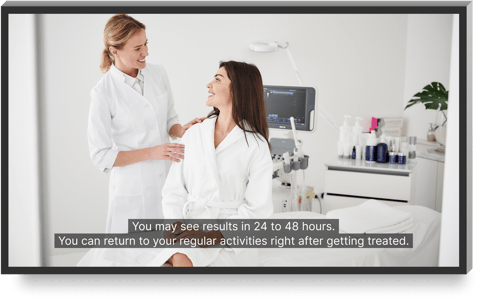
How Closed Captions Work
Closed captions are automatically created for supported videos when you upload them to your account. Because captions are automatically generated, wording, punctuation, and timing may not always be perfect.
When should captions be enabled?
- Clinics or waiting rooms where videos play without sound
- Supports patients who are hard of hearing
What if captions are already built into my video?
If your video already has built-in captions, follow these steps to prevent automatically generated captions from appearing.
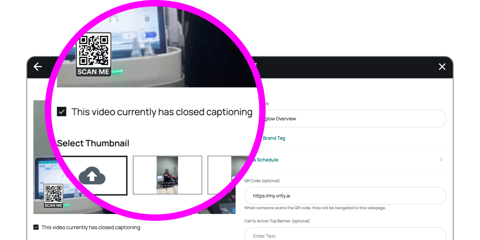
- Upload a new video or click Edit on an existing video
- In the video editor > check "This video currently has closed captioning"
- Save changes
Manage Captions on Your Screens
-
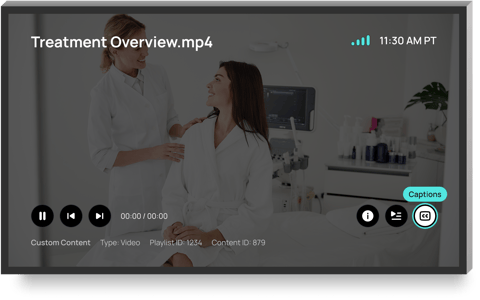
Reveal the screen playback controls
- On a Smart TV: Press up or down
- On a Tablet: Tap on the middle of the screen
- Select the CC icon to turn captions on

- To turn captions off, select the CC icon again

Troubleshooting
Captions are not appearing
Check the following:
-
Closed captions are enabled in playback settings
-
The screen has refreshed after the setting change
-
The video contains spoken audio
Automatic captions may not be available for every video format or content type.
Captions are inaccurate
Automatic captions are AI-generated and may occasionally misinterpret speech, accents, brand names, or background audio.
For best results:
-
Use videos with clear spoken audio
-
Reduce background music or noise when possible
-
Avoid relying on automatic captions for highly technical terminology